Now that you
understand a little bit about your Stamp and the LCD, we can add another
component and create a digital thermometer. To create a thermometer, we will
use a chip called the DS1620. This chip contains:
- A temperature-sensing
device
- An analog-to-digital
(A/D) converter for the temperature-sensing device
- A shift register to
read the data out of the A/D converter
- A little EEPROM (electrically
erasable programmable read-only memory) to remember settings
The DS1620 has two
modes: In one mode, it acts as a stand-alone thermostat chip, and in the other
mode you hook it up to a computer and use it as athermometer. The EEPROM
remembers the current mode as well as the set temperatures for the thermostat.
Hooking up the
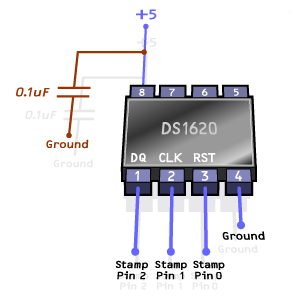
DS1620 to the Stamp is very easy. The DS1620 comes in an 8-pin chip. Supply +5
volts from the Stamp to pin 8 of the DS1620. Supply ground to pin 4 of the
DS1620. You then use three I/O pins from the Stamp to drive three pins on the
DS1620:
- Pin 1 on the DS1620 is the data
pin. You read and write data bits on this pin.
- Pin 2 on the DS1620 is the
clock pin. You clock data in and out of the shift register with this pin.
- Pin 3 on the DS1620 is the
reset/select pin. You set pin 3 high to select the chip and communicate
with it.
For this example
code, it is assumed that:
- The data pin goes to I/O pin 2
on the Stamp.
- The clock pin goes to I/O pin 1
on the Stamp.
- The reset/select pin goes to
I/O pin 0 on the Stamp.
The completed
wiring looks like this:
You can get a
DS1620 either from Jameco (part
number 146456) or Parallax (part
number 27917) in an "application kit" that includes the chip, the
capacitor, some good documentation and sample code. Or you can buy the chip on
its own from Jameco (part number
114382). I would suggest getting the application kit the first time you try
using the DS1620 because the documentation is very useful.
You can assemble
the DS1620 in the prototype area of the Stamp carrier board or on a separate
breadboard. Once you have assembled it, hook your LCD display up to I/O pin 3
of the Stamp, and then load and run the following program:
symbol RST = 0 '
select/reset line on 1620
symbol CLK = 1 '
clock line for shift registers on 1620
symbol DQ = 2 ' data line on 1620
symbol DQ_PIN =
pin2 ' pin representation for DQ
symbol LCD = 3 '
data line for LCD
begin:
low RST ' deselect the 1620 unless talking to it
high CLK ' clock pin on 1620 should default high
pause 1000 ' wait for the thermometer and LCD to boot
setup:
high RST ' select the 1620
b0 = $0C ' $0c is the 1620 command byte
' saying "Write Config"
gosub shift_out '
send it to the 1620
b0 = %10 ' %10 is the 1620 command byte
' to set thermometer mode
gosub shift_out '
send it to the 1620
low RST ' deselect the 1620
pause 50 ' delay 50ms for EEPROM
start_convert:
b0 = $EE ' $EE is the 1620 command byte
' to start conversions
high RST ' select the 1620
gosub shift_out '
send it to the 1620
low RST ' deselect the 1620
' This is the main
loop
' - reads and
displays temperature every second
main_loop:
high RST ' select the 1620
b0 = $AA ' $AA is the 1620 command byte
' for reading temperature
gosub shift_out ' send it to the 1620
gosub shift_in ' read the temperature
' from the 1620
low RST ' deselect the DS1620.
gosub display ' display the temp in degrees C
pause 1000 ' wait a second
goto main_loop
' The shift_out
subroutine sends whatever is in
' the b0 byte to
the 1620
shift_out:
output DQ ' set the DQ pin to
' output mode
for b2 = 1 to 8
low CLK ' prepare to clock the bit
' into 1620
DQ_PIN = bit0 ' Send the data bit
high CLK ' latch data bit into 1620
b0 = b0/2 ' shift all bits right
' toward bit 0
next
return
' The shift_in
subroutine gets a 9-bit
' temperature from
the 1620
shift_in:
input DQ ' set the DQ pin to
' input mode
w0 = 0 ' clear w0
for b5 = 1 to 9
w0 = w0/2 ' shift input right.
low CLK ' ask 1620 for next bit
bit8 = DQ_PIN ' read the bit
high CLK
' toggle clock pin
next
return
' Displays the
temperature in degrees C
display:
if bit8 = 0 then
pos ' if bit8=1
' then temp is negative
b0 = b0 &/ b0 ' invert b0 by NANDing it
' with itself
b0 = b0 + 1
pos:
serout LCD, n2400,
(254, 1) ' clear the LCD
serout LCD, n2400,
("Temp = ") ' display "Temp="
' on the display
bit9 = bit0 ' save the half degree
b0 = b0 / 2 ' convert to degrees
if bit8 = 1 then
neg ' see if temp is negative
serout LCD, n2400, (#b0) ' display positive temp
goto half
neg:
serout LCD, n2400, ("-", #b0)'
display negative temp
half:
if bit9 = 0 then even
serout LCD, n2400, (".5 C") '
display the half degree
goto done
even:
serout LCD, n2400, (".0 C") '
display the half degree
done:
return
If you run this
program, you will find that it displays the centigrade temperature with an
accuracy of one-half degree.
The DS1620 measures
temperatures in centigrade half-degrees. It returns the temperature in a 9-bit
2s-complement number with a range of -110 to 250 F (-55 to 125 C). You divide
the number you receive by 2 to get the actual temperature. 2s-complement
binary numbers are a convenient way to represent negative
values. The following list shows the values for a 4-bit 2s-complement
number:
0111 : 7
0110 : 6
0101 : 5
0100 : 4
0011 : 3
0010 : 2
0001 : 1
0000 : 0
1111 : -1
1110 : -2
1101 : -3
1100 : -4
1011 : -5
1010 : -6
1001 : -7
1000 : -8
You can see that
instead of the 4 bits representing values from 0 to 15, the 4 bits in a
2s-complement number represent the values -8 to 7. You can look at the
left-most bit to determine if the number is negative or positive. If the number
is negative, you can invert the bits and add 1 to get the positive
representation of the number.
Here's what goes on
with the digital thermometer program shown here:
- It uses the symbol keyword
to set up several constants that make the program slightly easier to read
(and also make it easy for you to move the chip to different I/O pins on
the Stamp).
- It sets the CLK and RST pins on
the DS1620 to their expected values.
- It writes a command byte to the
EEPROM on the DS1620 to tell the chip to operate in "thermometer
mode." Because the mode is stored in EEPROM, you only have to do it
once, so you could technically take this section of the code out of the
program after you run the program once (to save program space).
- The program sends the command $EE ("$"
means "hexadecimal number" -- $EE is 238 in decimal) to tell the
thermometer to start up its conversion process.
The program then
enters a loop. Every second, it sends a command to the DS1620
telling the DS1620 to return the current temperature, and then it reads the
9-bit value that the DS1620 returns into the w0 variable. The Stamp sends and
receives data 1 bit at a time by toggling the CLK line on the DS1620. Remember
that the w0 (16-bit) variable overlays the b0/b1 (8-bit) variables, which overlay
the bit0/bit1/.../bit15 (1-bit) variables, so when you insert a bit from the
DS1620 into bit 8 and divide w0 by 2, what you are doing is shifting each bit
to the right to store the 9-bit temperature from the DS1620 into w0. Once the
temperature has been saved in w0, the display subroutine determines whether the
number is positive or negative and displays it appropriately on the LCD as a
centigrade temperature. The conversion from degrees C to degrees F is:
dF = dC *
9/5 + 32
At this point, we
have succeeded in creating an extremely expensive thermometer. What might you
do with it? Here's one idea. Let's say you work for a drug company and you are
shipping expensive drugs across the country that MUST remain at a certain
temperature the entire way or the drugs will spoil. What you can do with a
Stamp is create a data logging thermometer. Both Jameco (part number 143811) and Parallax(part number 27960) sell a
device called the "RAM Pack module." It contains a low-power
8-kilobyte (or optionally 32-kilobyte) RAM chip with a serial interface. You
could add this component (or something similar) to your Stamp and write code
that saves temperature readings to the RAM every minute. You could then slip
your Stamp into the drug shipment, and at the other end of the trip retrieve
the Stamp. The RAM module would contain the temperature history of the entire
trip and you would know whether or not the drugs ever thawed out.
There are all kinds
of neat, useful devices like this that you can build with a Stamp now that you
know how microcontrollers work!
Reference:

.jpg)